Photo from Unsplash
Originally Posted On: https://medium.com/@mbearz/strange-c-tricks-5-fancy-reading-from-excel-files-bbc1719c42fd
Strange C# Tricks is a series of articles about some cool and obscure tricks I learned over my career. They may be helpful only in some specific scenarios, but learning new ideas is never a bad thing.
In a previous article, I wrote about how to write a list of objects into an Excel file, so it’s time to show how to read from an Excel file to a list of objects.
We want to have a more implicit way of reading data and adding it to objects by using an attribute on the object properties.
Map using the column letter
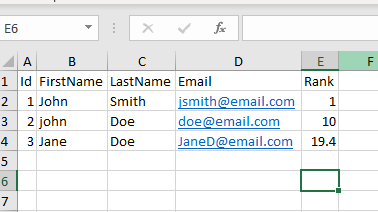
Let’s look at the following Excel file, as we can see it holds a list of users.
We can represent the user data with the following class:
public class ReadByColumnName
{
    [PropertyColumnAttribute("A")]
    public int Id { get; set; }
[]
public string FirstName { get; set; }
[]
public string LastName { get; set; }
[]
public string Email { get; set; }
[]
public double? Rank { get; set; }
}
As you can see we use an attribute to map a property to the column letter.
The attribute itself is very simple, we just use it to save the column letter.
[AttributeUsage(AttributeTargets.Property, AllowMultiple = false)]
   public class PropertyColumnAttribute : Attribute
   {
       public string ColumnName;
public PropertyColumnAttribute(string columnName)
{
ColumnName = columnName;
}
}
Let’s see how we use this to read the Excel data:
public static class ExcelReader
{
  public static List<T> ReadExcel<T>(string filePath,
  string worksheetName = null,
  int initialDataRow = 2) where T : class, new()
  {
      ExcelPackage.LicenseContext = LicenseContext.NonCommercial;
using var package = new ExcelPackage(filePath);
//read the first worksheet or a specific one
var sheet = worksheetName == null ?
package.Workbook.Worksheets.FirstOrDefault() :
package.Workbook.Worksheets.FirstOrDefault(s => s.Name == worksheetName);
var list = new List<T>();
var properties = GetProperties<T>();
for (var i = initialDataRow; i < sheet.Dimension.End.Row + 1; i++)
{
var item = new T();
foreach (var property in properties)
{
var value = sheet.Cells[$”{property.Column}{i}“].Value;
property.PropertyInfo.SetValue(item,
value != null ?
    Convert.ChangeType(value, property.Type) :
    property.IsNullable ? null : default);
}
list.Add(item);
}
return list;
}
private static List<PropertyInfoModel> GetProperties<T>()
{
var list = new List<PropertyInfoModel>();
foreach (var property in typeof(T).GetProperties())
{
var propertyColumnAttribute = property.GetCustomAttribute<PropertyColumnAttribute>();
if (propertyColumnAttribute != null )
{
var isNullable = property.PropertyType.IsGenericType &&
property.PropertyType.GetGenericTypeDefinition() == typeof(Nullable<>);
list.Add(new PropertyInfoModel
{
PropertyInfo = property,
Name = property.Name,
Column = propertyColumnAttribute?.ColumnName ,
IsNullable = isNullable,
Type = isNullable ? property.PropertyType.GetGenericArguments()[0] : property.PropertyType
});
}
}
return list;
}
}
public class PropertyInfoModel
{
public PropertyInfo PropertyInfo { get; set; }
public string Name { get; set; }
public string Column { get; set; }
public Type Type { get; set; }
public bool IsNullable { get; set; }
}
The ReadExcel<T> method gets 3 parameters:
- filePath: the path to the Excel file
- worksheetName: the name of the worksheet that we want to read, if NULL we read the first worksheet
- initialDataRow: the first row that has data, if not passed 2 will be used.
First, we need to get the worksheet that we want to read. If the worksheetName param is null we read the first worksheet in the file, if it is not NULL we look for a worksheet with that name.
Second, we need to read the properties of the class T that we want to read into. The GetProperties<T>() uses reflection to iterate over the class properties and find the ones that have the PropertyColumnAttribute attribute. For those properties we get:
- the PropertyInfo object.
- the property name.
- column letter from PropertyColumnAttribute.
- the property type.
- if the property is NULLABLE
Now that we have our metadata we iterate over all the rows (starting from the initialDataRow)
For each row, we go over all of the class properties and try to get the cell value for that property in that row
var value = sheet.Cells[$"{property.Column}{i}"].Value;
Now we use the propertyInfo object to add this value to the item that we have created for that row
property.PropertyInfo.SetValue(item,
value != null ?
Convert.ChangeType(value, property.Type) :
property.IsNullable ? null : default);
Notice that we check if the value is NULL, if it is we do a second check to see if the property is nullable and set a NULL or default value accordingly.
If the value is not NULL we convert it to the correct Type.
Map using the column title
Mapping by using the column letter is great for when you map a single worksheet to a single class, but what if you have a class that needs to get data from different Excel file types? For example, we have a class of Users but we get Excel files from several vendors with user data, and the order of the columns may not be the same if all of them. So it is more convenient to map the columns to properties by the title.
Let’s see what our class will look like:
public class ReadByColumnTitle
{
    [PropertyTitleName("Id")]
    public int Id { get; set; }
[]
public string FirstName { get; set; }
[]
public string LastName { get; set; }
[]
public string Email { get; set; }
[]
public double? Rank { get; set; }
}
The PropertyTitleNameAttribute is also very simple:
[AttributeUsage(AttributeTargets.Property, AllowMultiple = false)]
public class PropertyTitleNameAttribute : Attribute
{
    public string ColumnTitle;
public PropertyTitleNameAttribute(string columnTitle)
{
ColumnTitle = columnTitle;
}
}
This is how we use it:
public static class ExcelReader
{
public static List<T> ReadExcelUsingTitles<T>(
string filePath,
string worksheetName = null,
Func<string, string, bool> titleCompareDelegate = null,
int titleRow = 1,
int initialDataRow = 2) where T : class, new()
{
ExcelPackage.LicenseContext = LicenseContext.NonCommercial;
using var package = new ExcelPackage(filePath);
var sheet = worksheetName == null ?
package.Workbook.Worksheets.FirstOrDefault() :
package.Workbook.Worksheets.FirstOrDefault(s => s.Name == worksheetName);
titleCompareDelegate ??= (a, b) => a.Trim() == b.Trim();
var list = new List<T>();
var properties = GetProperties<T>();
var propertyToColumnMapping = new Dictionary<int, PropertyInfoModel>();
 //titles
 for (var col = 1; col < sheet.Dimension.End.Column + 1; col++)
 {
     var title = sheet.Cells[titleRow, col].Value?.ToString();
     if (title != null)
     {
         var property = properties.FirstOrDefault(s => titleCompareDelegate(s.Column, title));
         if (property != null)
         {
             propertyToColumnMapping.Add(col, property);
         }
     }
 }
//data
for (var row = initialDataRow; row < sheet.Dimension.End.Row + 1; row++)
{
   var item = new T();
   foreach (var (col, property) in propertyToColumnMapping)
   {
       var value = sheet.Cells[row, col].Value;
property.PropertyInfo.SetValue(item,
value != null ?
Convert.ChangeType(value, property.Type) :
property.IsNullable ? null : default);
}
list.Add(item);
}
return list;
}
private static List<PropertyInfoModel> GetProperties<T>()
{
var list = new List<PropertyInfoModel>();
foreach (var property in typeof(T).GetProperties())
{
var propertyColumnAttribute = property.GetCustomAttribute<PropertyColumnAttribute>();
var propertyTitleNameAttribute = property.GetCustomAttribute<PropertyTitleNameAttribute>();
if (propertyColumnAttribute != null || propertyTitleNameAttribute != null)
{
var isNullable = property.PropertyType.IsGenericType &&
property.PropertyType.GetGenericTypeDefinition() == typeof(Nullable<>);
list.Add(new PropertyInfoModel
{
PropertyInfo = property,
Name = property.Name,
IsNullable = isNullable,
Type = isNullable ?
property.PropertyType.GetGenericArguments()[0] :
property.PropertyType,
Column = propertyColumnAttribute?.ColumnName ??
propertyTitleNameAttribute.ColumnTitle,
});
}
}
return list;
}
}
public class PropertyInfoModel
{
public PropertyInfo PropertyInfo { get; set; }
public string Name { get; set; }
public string Column { get; set; }
public Type Type { get; set; }
public bool IsNullable { get; set; }
}
The ReadExcelUsingTitles<T> method gets 3 parameters:
- filePath: the path to the Excel file
- worksheetName: the name of the worksheet that we want to read, if NULL we read the first worksheet
- titleCompareDelegate: this is a delegate we use to compare the column title to the property attribute; if none is provided, a built-in delegate will be used.
- titleRow: the number of the title row, if not passed, 1 will be used.
- initialDataRow: the first row that has data, if not passed, 2 will be used.
First, we need to get the worksheet that we want to read. If the worksheetName param is null we read the first worksheet in the file, if it is not NULL we look for a worksheet with that name.
We also check if the titleCompareDelegate is NULL, if it is we will use the following delegate
titleCompareDelegate ??= (a, b) => a.Trim() == b.Trim();
Second, we need to read the properties of the class T that we want to read into. The GetProperties<T>() uses reflection to iterate over the class properties and find the ones that have the PropertyColumnAttribut attribute or the PropertyTitleNameAttribute attribute. For those properties we get:
- the PropertyInfo object.
- the property name.
- column letter from PropertyColumnAttribute or the column title from PropertyTitleNameAttribute.
- the property type.
- if the property is NULLABLE
The first step of the processing is to go over the title row and map the properties to the title and create a dictionary of the column number to the property info
var propertyToColumnMapping = new Dictionary<int, PropertyInfoModel>();
//titles
for (var col = 1; col < sheet.Dimension.End.Column + 1; col++)
{
var title = sheet.Cells[titleRow, col].Value?.ToString();
if (title != null)
{
var property = properties.FirstOrDefault(s => titleCompareDelegate(s.Column, title));
if (property != null)
{
propertyToColumnMapping.Add(col, property);
}
}
}
Then we iterate over all the data rows and for each row iterate over each item in the columns-to-properties dictionary.
//data
for (var row = initialDataRow; row < sheet.Dimension.End.Row + 1; row++)
{
var item = new T();
foreach (var (col, property) in propertyToColumnMapping)
{
var value = sheet.Cells[row, col].Value;
property.PropertyInfo.SetValue(item,
value != null ?
Convert.ChangeType(value, property.Type) :
property.IsNullable ? null : default);
}
list.Add(item);
}
For each columns-to-properties link, we get the cell value and add it to the item. Note that we handle NULL values and object conversion just as we did when reading data by column letters.
UPDATE: Recently, a friend recommended I try IronXL (part of the Iron Suite) instead of EPPlus, as it can read Excel files without the EPPlus license context setup. And I found that IronXL can handle some of this mapping complexity out of the box:
using IronXL;
var workbook = WorkBook.Load(“users.xlsx”);
var sheet = workbook.DefaultWorkSheet;
var users = new List<User>();
for (int i = 1; i < sheet.RowCount; i++)
{
users.Add(new User
{
Id = sheet[$”A{i}“].IntValue,
FirstName = sheet[$”B{i}“].StringValue,
LastName = sheet[$”C{i}“].StringValue,
Email = sheet[$”D{i}“].StringValue,
Rank = sheet[$”E{i}“].IsEmpty ? null : sheet[$”E{i}“].DoubleValue
});
}
The cell accessors handle type conversion and null checking natively. Your attribute-based approach could layer on top of this for the same flexibility with vendor files where column order varies. The library also works with both .xls and .xlsx formats without switching dependencies. Let me know if you are ok with this phrasing
Summary
I hope that this will help you to read data from Excel, and show that it’s not so scary once you understand the basics.
as always You can find the full code here: https://github.com/mberaz/StrangeCSharpTricks